Docs
Autofix Bot is a terminal-based code review tool that finds and fixes security vulnerabilities, hardcoded secrets, and code quality issues in your codebase. It works standalone or integrates with AI coding agents like Claude Code, Codex, and others through the Model Context Protocol (MCP).
Installation
Install with a single command:
curl -fsSL https://autofix.bot/install | sh
| OS | Architecture | Status |
|---|---|---|
| macOS | Apple Silicon / Intel | Available |
| Linux | x86_64 / arm64 | Available |
| Windows | x86_64 | Coming soon |
Requires Python 3 and Git. Installs to ~/.local/bin/autofix - make sure it's in your PATH. Run autofix --version to verify.
Quick start
Navigate to any Git repository and run:
autofix
Autofix Bot will:
- Analyze your codebase for security vulnerabilities
- Detect code quality issues
- Find hardcoded secrets and validate if they're still active
- Present findings in an interactive terminal UI
!NOTE On first run, Autofix Bot opens your browser to authenticate. Your session is refreshed automatically. To sign out, open the options menu (
Ctrl+O) and select "Logout".
Terminal Agent
The terminal UI walks you through reviewing and fixing issues interactively.
Choose target
When you launch autofix, you'll see your repository info at the top - the current branch, last commit, and how many commits you've diverged from the default branch.
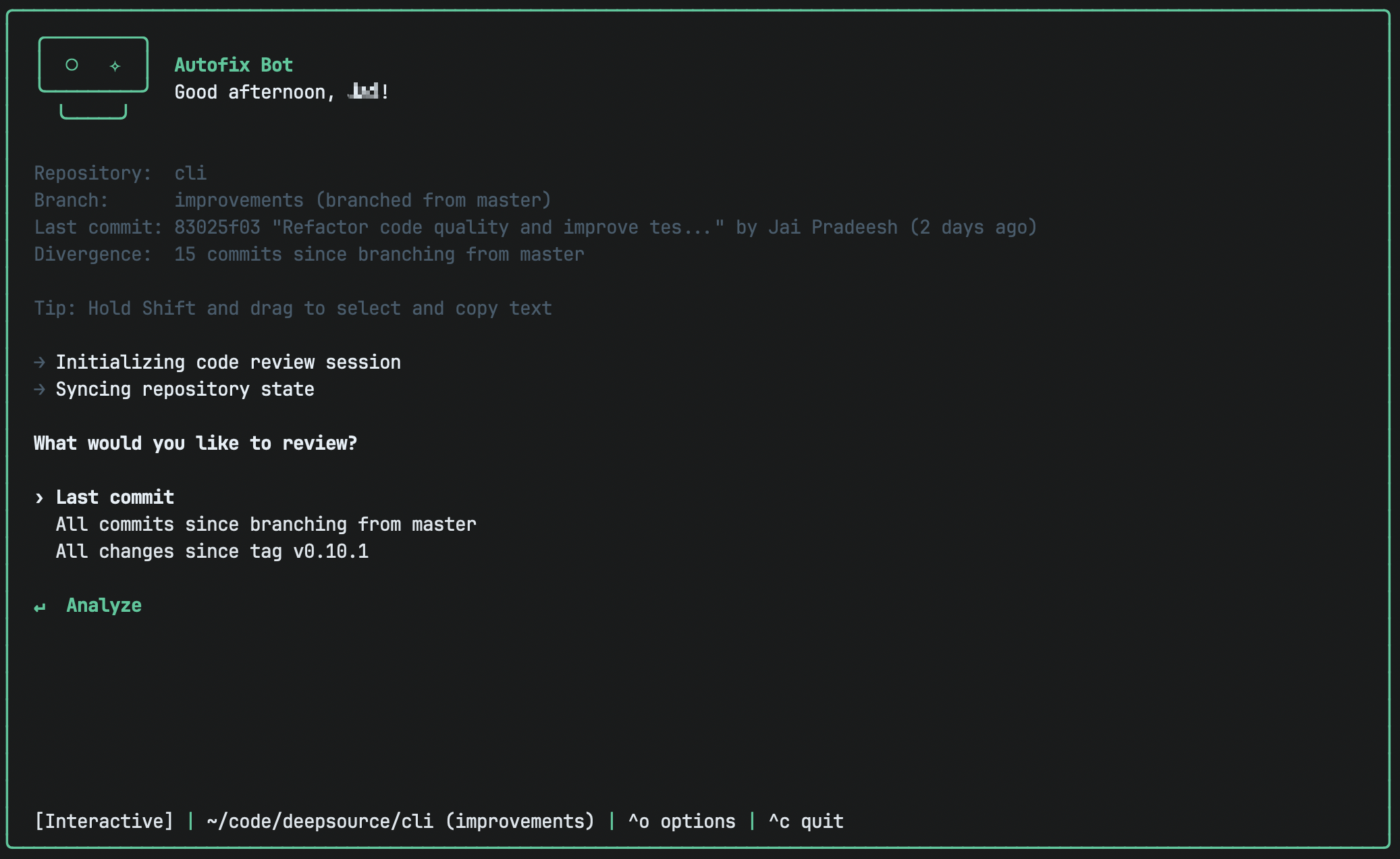
Choose what you want to review:
- Uncommitted changes - just your working directory changes
- Last commit (+uncommitted) - your most recent commit plus any uncommitted work
- All commits since branching - everything on your feature branch (includes uncommitted changes if present)
- Since last tag - all changes since the last git tag, useful to catch issues before tagging a new version
To review a teammate's PR, checkout the branch locally and select All commits since branching to analyze all changes compared to the base branch:
git checkout <pr-branch>
autofix
Scanning
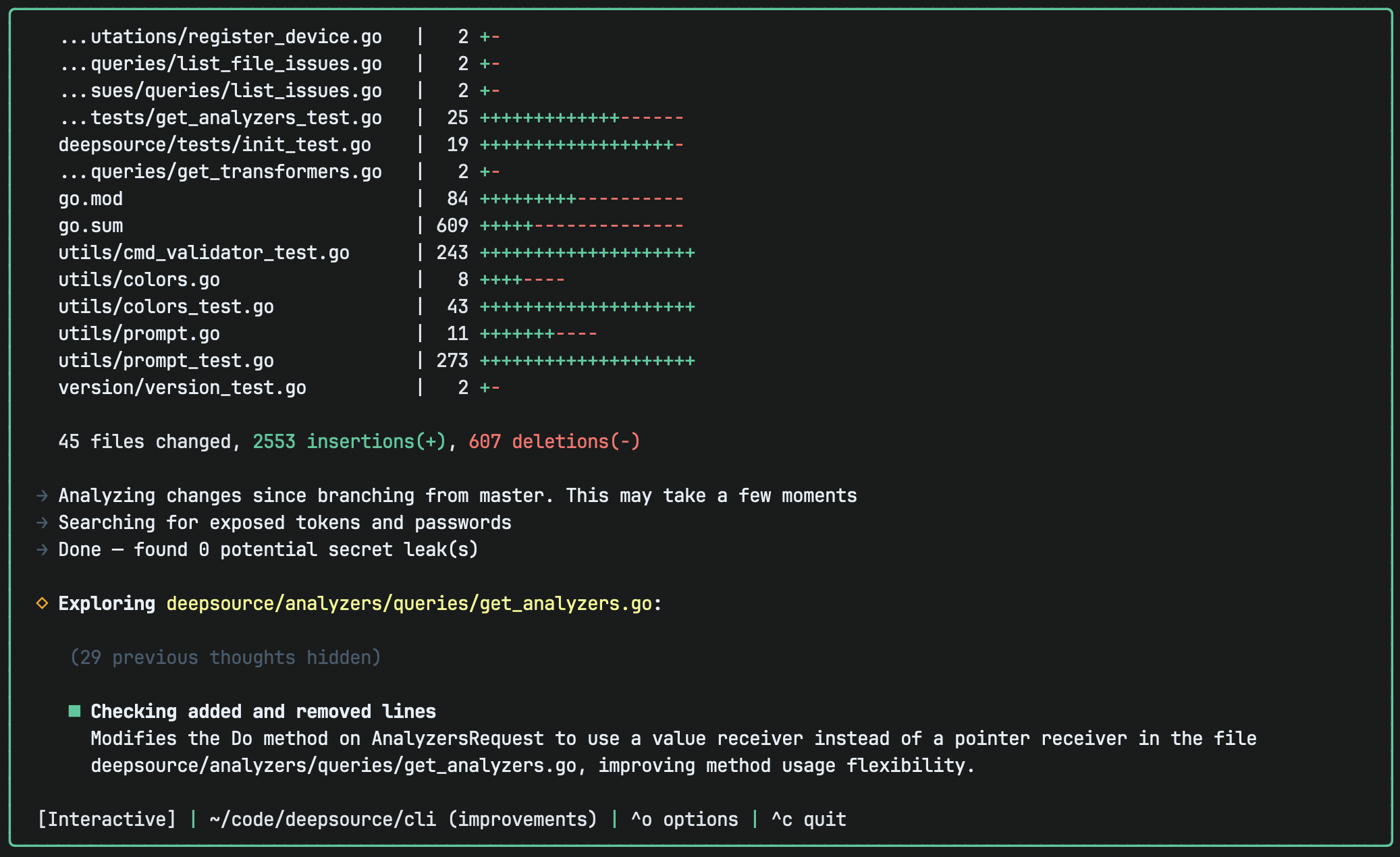
Once you select an analysis target, Autofix Bot begins scanning your code. You'll see progress updates as each phase completes, starting with the secret scan.
The exploration section shows what's happening under the hood - which files are being examined and what code paths are being traced. This updates in real-time as Autofix Bot works through your changes.
Issues
When Autofix Bot finds a hardcoded secret, it shows you the provider (Stripe, AWS, GitHub, etc.) and whether the secret is still active.
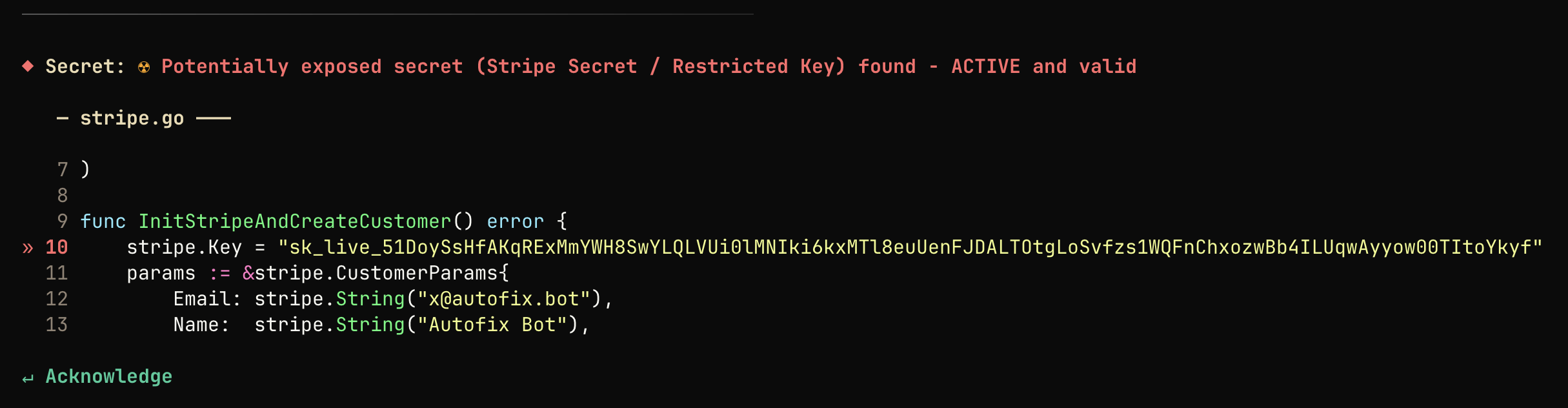
Secrets can't be Autofix'ed - you need to rotate them manually. Press Return/Enter to acknowledge and move on.
For code issues, you'll see a severity badge (Critical, Major, or Minor) and a category label - Security, Bug Risk, Anti-pattern, Performance, Style, or Documentation. The issue card shows the title, a detailed explanation of what's wrong and why it matters, and the relevant code snippet with line numbers.
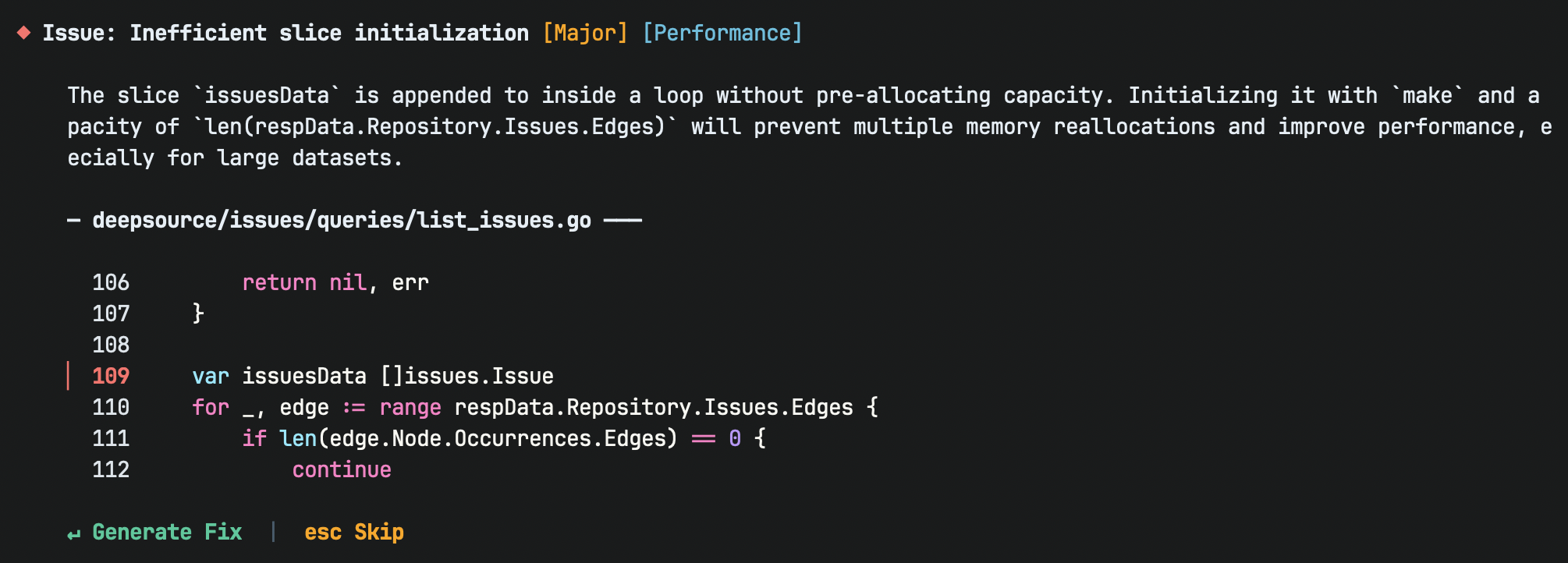
From here, press Return/Enter to generate a fix, or Esc to skip the issue and move on.
Fixes
After requesting a fix, Autofix Bot generates a solution and explains what the code change does. Below the explanation, you'll see a diff showing exactly what lines will change - removed lines in red and added lines in green.
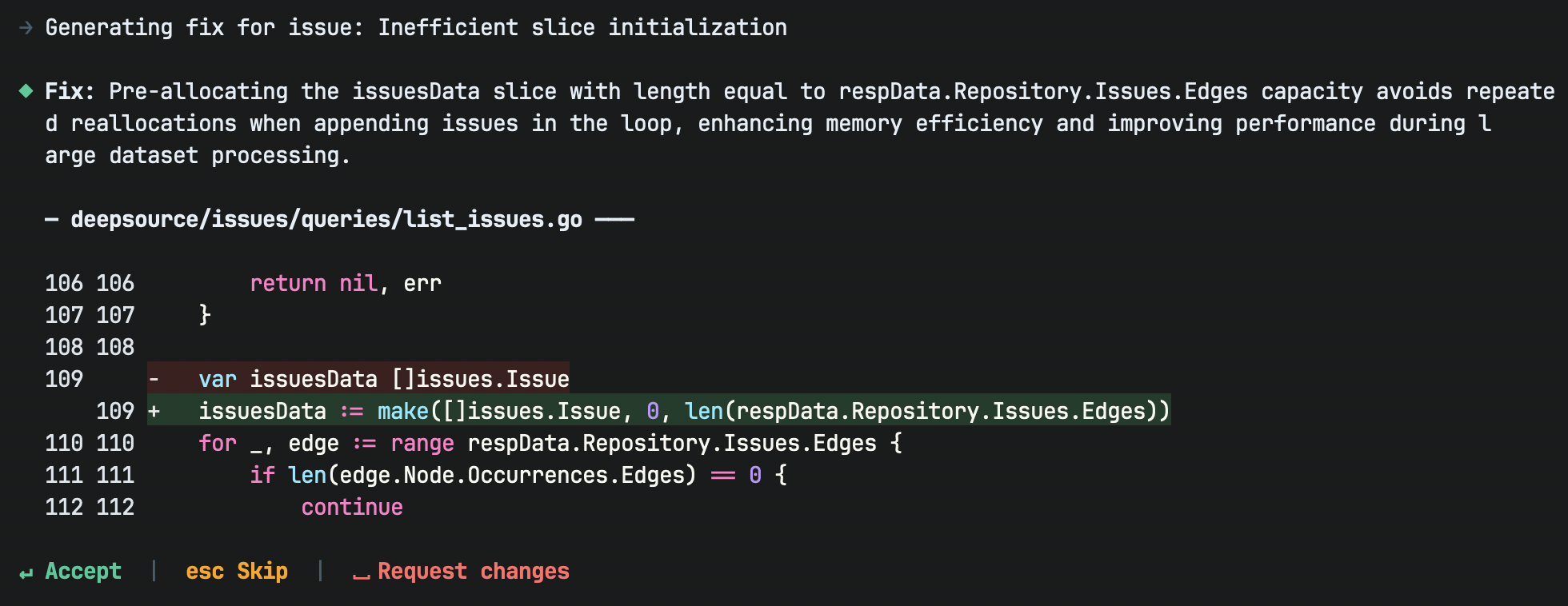
Press Return/Enter to accept and apply the fix, Esc to skip, or Space to request changes if you want a different approach.
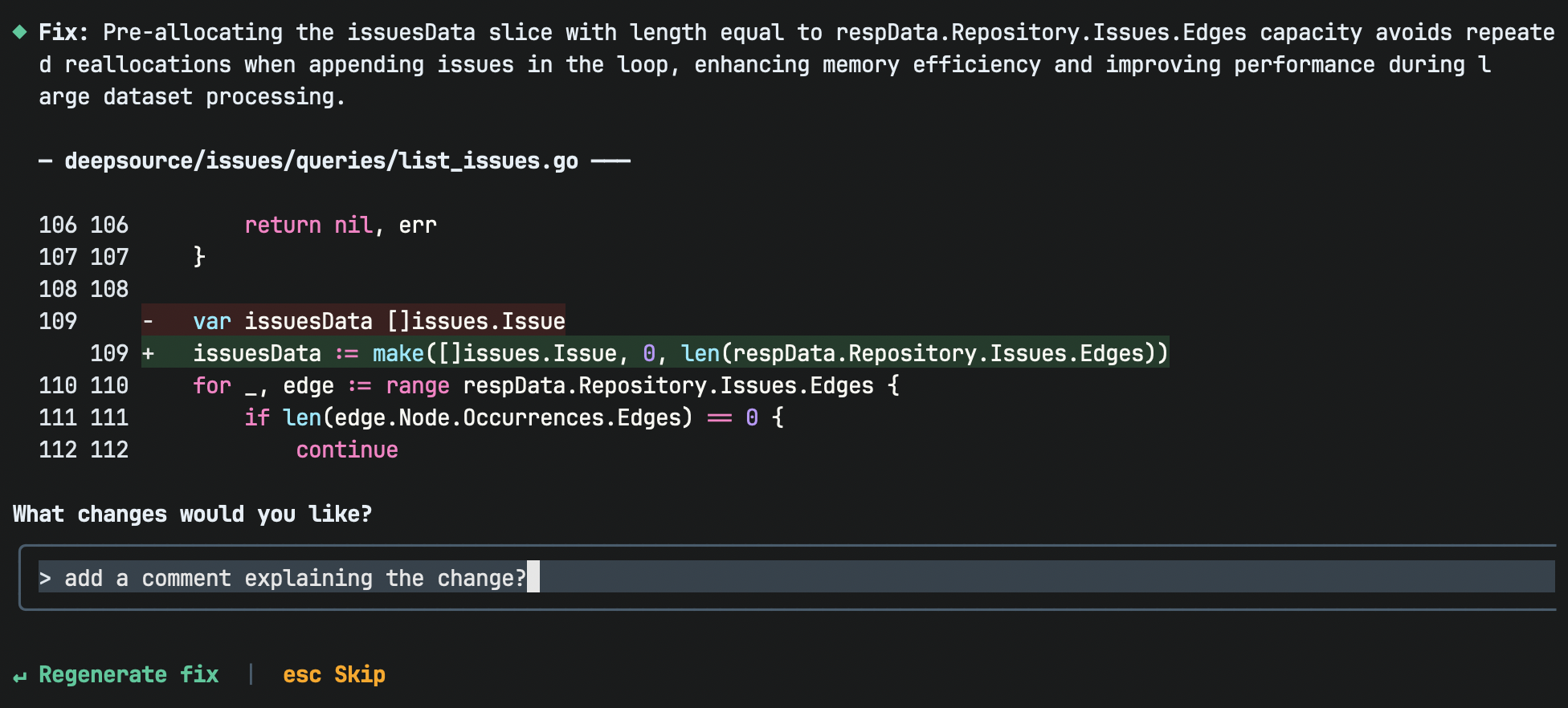
When you request changes, tell Autofix Bot what you'd like different - maybe remove a comment, use a different approach, or handle an edge case. Press Return/Enter to regenerate the fix with your feedback.
When you accept a fix, it's applied to your files and the status bar tracks how many issues you've fixed. Autofix Bot then moves to the next issue.
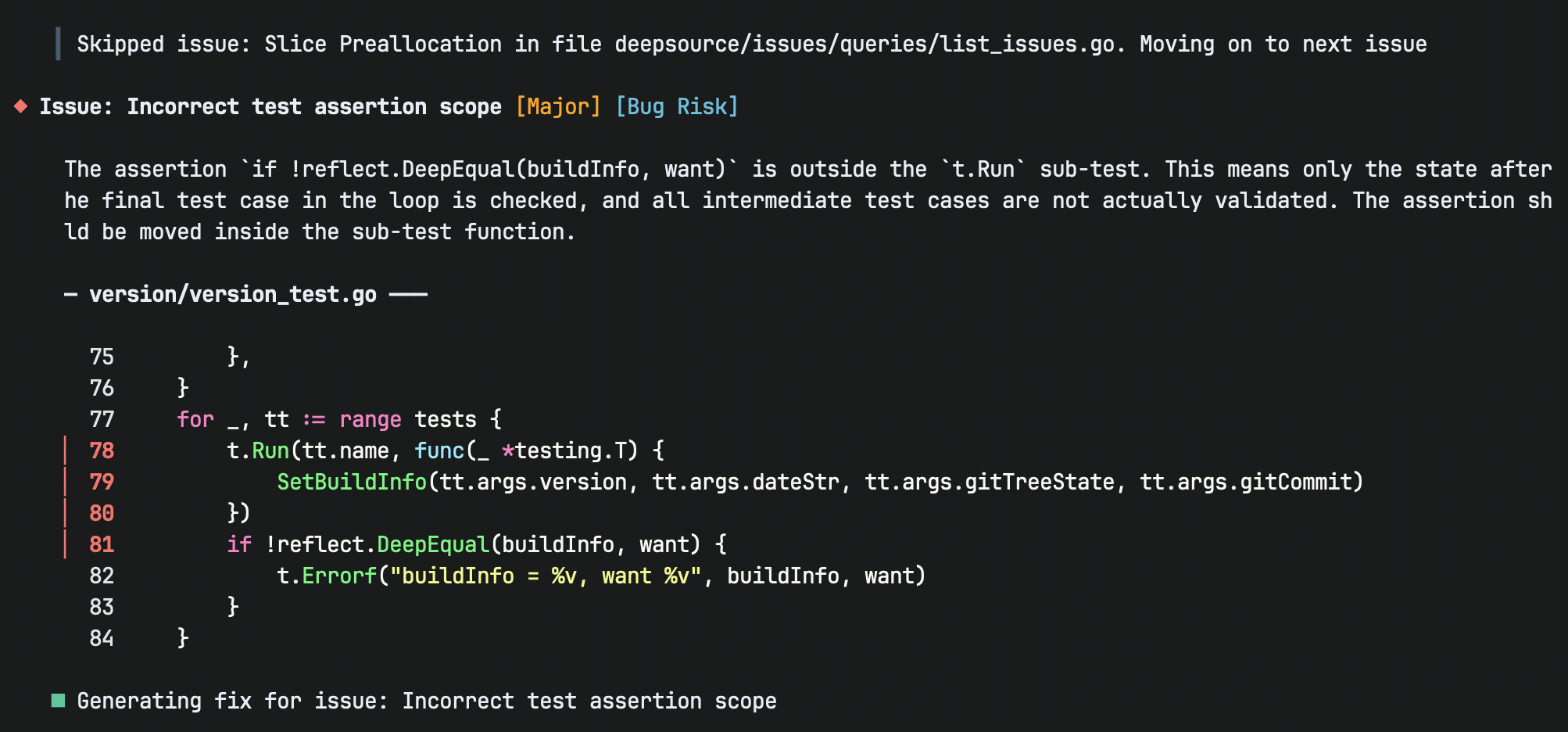
Review modes: Autofix Bot offers two modes. Interactive (default) lets you review each issue individually and decide what to do. Autopilot auto-applies fixes after a countdown (default 5 seconds, configurable) - run it in a background terminal tab and let it fix issues while you keep working.
Press Shift+Tab to toggle between modes at any time.
Controls
| Key | Action |
|---|---|
Return/Enter | Generate fix / Apply fix |
Esc | Skip issue |
Space | Request changes |
Shift+Tab | Toggle Autopilot |
Ctrl+O | Options menu |
Ctrl+C | Quit |
Press Ctrl+O to open the options menu.
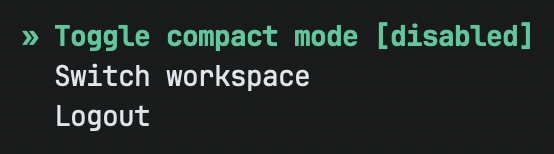
- Toggle compact mode - reduces logs and visual clutter for a more focused view.
- Switch workspace - switch to a different workspace if you have multiple workspaces in your account.
- Logout - signs you out and clears your session. You'll need to re-authenticate on next launch.
AI agents
Autofix Bot integrates with AI coding agents through the Model Context Protocol (MCP).
Claude Code
Install the plugin in Claude Code:
/plugin marketplace add DeepSourceCorp/autofix-bot-claude-plugin
/plugin install autofix-bot@autofix-bot-claude-plugin
Then run /autofix-bot:review or ask Claude to "Review code with Autofix Bot".
Codex
Add Autofix Bot to OpenAI Codex CLI:
codex mcp add autofix -- autofix --mcp
Add this timeout configuration to ~/.codex/config.toml since analysis can take several minutes:
tool_timeout_sec = 1200
Then ask Codex to "Review code with Autofix Bot".
Other clients
For any MCP-compatible client, run autofix --mcp to start the server. Example JSON configuration:
{
  "mcpServers": {
    "autofix": {
      "command": "autofix",
      "args": ["--mcp"],
      "transport": "stdio"
    }
  }
}
Available tools: ReviewCode (analyze code), CheckAuthStatus, Authenticate. Set analysis_target to uncommitted, last_commit, entire_branch, or since_last_tag.
Timeouts: Analysis can take 1-5 minutes depending on repository size. Configure your client's tool timeout accordingly.
CLI reference
| Command | Description |
|---|---|
autofix | Launch the interactive terminal UI |
autofix --version | Show version |
autofix --mcp | MCP server mode - connect via stdio from any MCP client |
Configuration
Autofix Bot stores configuration in ~/.autofix/config.toml (created on first run).
User settings
Edit the [ui] section to customize behavior:
[ui]
log_retention_days = 7
compact_mode = false
autopilot_countdown_seconds = 5
| Setting | Default | Description |
|---|---|---|
log_retention_days | 7 | Number of days to keep debug logs. These logs may be requested by support when troubleshooting issues. |
compact_mode | false | Show only step titles, hiding the detailed exploration logs beneath each step. |
autopilot_countdown_seconds | 5 | Seconds to wait before auto-applying fixes in autopilot mode (1-60). |
The [api] and [auth] sections are managed automatically and should not be edited.
Troubleshooting
Authentication
Browser doesn't open? Manually visit the URL shown in the terminal.
Session expired? Re-run autofix to authenticate again.
MCP mode fails to authenticate? Run autofix in terminal mode first, then use MCP mode.
Other issues
"Command not found: autofix" - Add ~/.local/bin to your PATH:
export PATH="$HOME/.local/bin:$PATH"
"No issues found" - Make sure you're in a Git repository with uncommitted changes or commits to analyze. Try a different analysis target.
Analysis taking too long - Large repositories can take several minutes. For AI agents, increase the tool timeout (e.g., tool_timeout_sec = 1200 in Codex).
MCP connection issues - Verify installation with autofix --version and check your client configuration.
Still stuck? Contact us via the chat bubble on the dashboard.
Privacy & security
Your code is analyzed in isolated, ephemeral environments and never stored after analysis completes. All data is encrypted at rest and in transit. We're SOC 2 Type II certified and don't train on your code unless you opt in from the dashboard.
For enterprises requiring on-premises deployment, contact us.